






What Does Collate Mean When Printing? A Complete Guide
June 22, 2026 Explore Blogs
If you’ve ever clicked Print on a multi-page document and paused at the word “Collate” in the print settings, you’re not alone. It’s one of those quietly important printing options that most people ignore until they’re standing at the printer manually sorting through 200 loose pages and wishing they hadn’t.
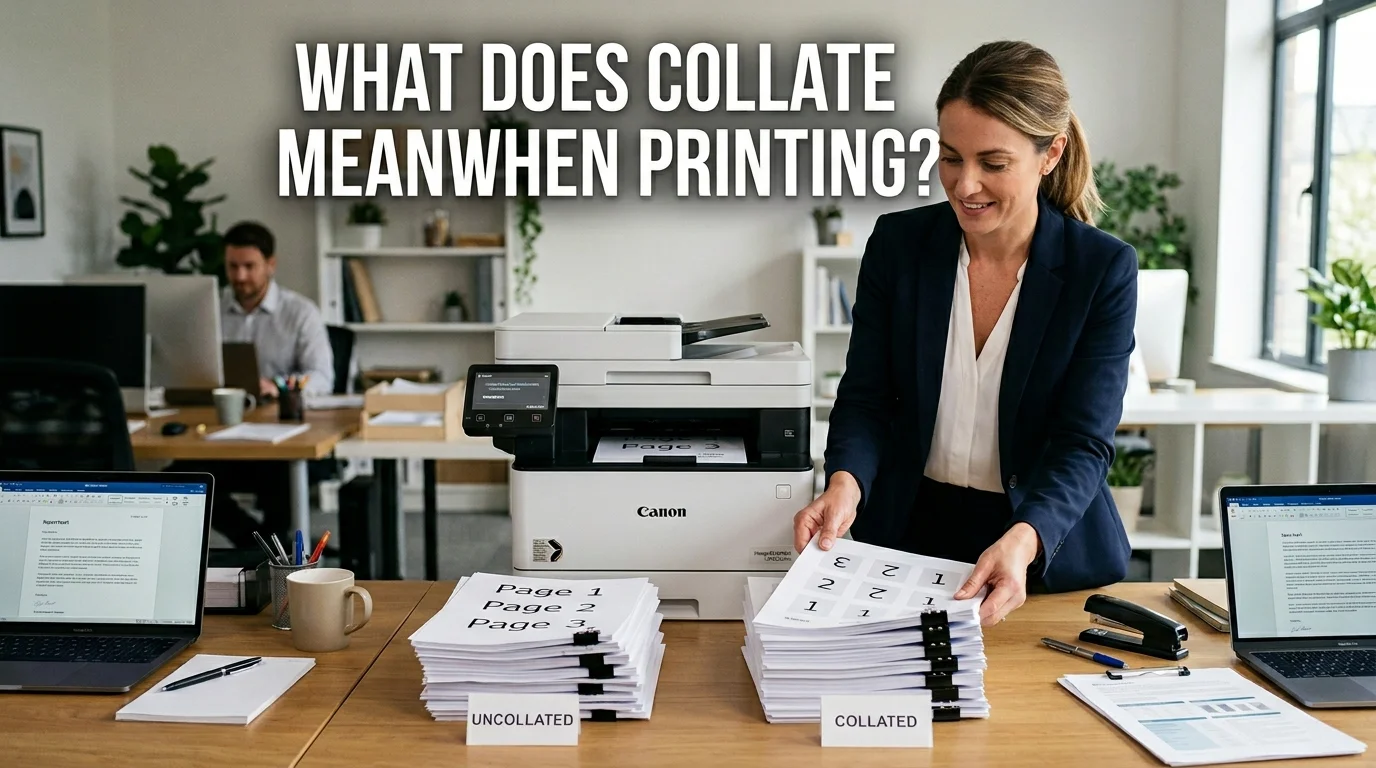
Here’s the short answer: collating means your printer outputs each complete copy of a document in sequential order before starting the next copy. So if you’re printing 10 copies of a 20-page report, a collated print job gives you 10 neatly ordered sets of pages 1 through 20. Without it, you get 10 copies of page 1, then 10 copies of page 2 — and a sorting job that could eat up the rest of your morning.
That’s the essence of it. But if you work with documents regularly — reports, client proposals, instruction manuals, training packs — understanding collation properly can meaningfully improve how your print workflow operates.
Collated vs. Uncollated Printing: What’s the Actual Difference?
The clearest way to understand collation is to see both modes side by side.
Imagine you need to print 5 copies of a 4-page document.
Collated output gives you: Pages 1-2-3-4 | Pages 1-2-3-4 | Pages 1-2-3-4 | Pages 1-2-3-4 | Pages 1-2-3-4
Five complete, ready-to-use document sets, in order, the moment they come off the printer.
Uncollated output gives you: Pages 1-1-1-1-1 | Pages 2-2-2-2-2 | Pages 3-3-3-3-3 | Pages 4-4-4-4-4
Five stacks of individual pages that need to be manually assembled into sets — every single time.
For a 4-page document, uncollated output is a minor inconvenience. For a 40-page document printed in 20 copies, it becomes a significant operational problem that wastes time, introduces error risk, and frustrates everyone involved.
Why Collating Matters: The Real Benefits
1. Time Savings at Scale
The most immediate benefit of collated printing is the elimination of manual sorting. In a busy office or print environment, time spent reassembling uncollated output is time pulled away from productive work. For large-volume print jobs training manuals, board meeting packs, client proposal sets the time savings compound quickly.
Before modern print management software, manual collation was simply the reality. A document operator would print each page separately and physically sort copies into sets. Digital collation has made that process entirely redundant for most use cases, and it’s worth taking advantage of it.
2. Immediate Usability
Collated documents are ready to use the moment they leave the printer. There’s no intermediate sorting step. For time-sensitive print jobs — a presentation that needs to be on the conference table in ten minutes, an agenda pack for a meeting starting shortly — collation is the difference between composure and chaos.
3. Accuracy and Page Integrity
Manual sorting introduces human error. Pages get skipped, duplicated, or placed out of sequence — especially under pressure or in high-volume runs. Collated printing removes that risk entirely. The printer handles sequencing mechanically, with no possibility of a page being misplaced through inattention.
For documents where page order is operationally critical, legal contracts, safety manuals, medical instructions, financial statements, this accuracy dimension is not a convenience, it’s a requirement.
When Should You Use Collated Printing?
Collation is most valuable whenever you’re printing multiple copies of a document with more than one page. Here are the most common and high-value use cases in professional environments:
Business Reports and Executive Summaries: Multi-page reports distributed to teams or stakeholders need to be in correct reading order. Collation ensures every recipient gets an identical, properly sequenced copy without any assembly required.
Presentation Handouts: When printing slide decks or speaker notes for a meeting or conference, collation guarantees that each attendee’s handout set mirrors the intended presentation flow. A missequenced handout pack in a boardroom is an avoidable embarrassment.
Training Materials and Employee Manuals: Sequential page order is functionally critical in instructional content. Procedure steps, safety guidelines, and onboarding documentation must be read in order to be understood correctly. Uncollated training packs create real comprehension risk.
Invoices, Statements, and Billing Documents:When printing batches of multi-page billing documents for different customers, collation keeps each customer’s full document set together and in order, simplifying distribution and reducing the chance of pages being matched to the wrong account.
Legal and Compliance Documents: Contracts, regulatory filings, and compliance packs often have specific page ordering requirements with legal implications. Collated printing eliminates any doubt about sequence integrity.
Event Programs and Booklets: For printed programs, course schedules, or custom event booklets, collation ensures that each copy handed to an attendee is complete and correctly ordered ready to use, with no assembly required.
When Uncollated Printing Makes Sense
Collation isn’t always the right choice. There are legitimate scenarios where uncollated output is actually more practical.
If you need to print multiple copies of a single-page document a flyer, a single-sided memo, a one-page form collation has no effect. There’s only one page to sequence.
If you’re printing a document where different copies will be customized or separated after printing say, a form where the first page goes to one department and the second page to another uncollated output already delivers the pages pre-sorted by type.
If you’re working with specialty finishing equipment that requires grouped pages for binding or folding, uncollated output may be the input format the finishing process requires.
Understanding when not to collate is just as useful as knowing when to use it.
How to Enable or Disable Collating in Print Settings
Accessing the collation setting is straightforward across most operating systems and applications, though the exact path varies slightly by platform.
General process across most systems: Open your document, select Print (Ctrl+P on Windows, Cmd+P on Mac), and look for the Collate checkbox or toggle within the print settings panel. It typically appears near the “Copies” field, since collation only applies when printing more than one copy.
On Windows: In the print dialogue box, the Collate option usually appears directly beneath the number of copies field. It’s often checked by default.
On macOS: Click “Show Details” in the print dialogue to expand the full settings panel. The Collate checkbox appears in the Copies & Pages section.
In Microsoft Office applications (Word, Excel, PowerPoint): The Collate option appears directly in the print settings panel on the right-hand side of the print preview screen, adjacent to the copies selector.
In Adobe Acrobat and Reader: Under the print dialogue, expand the Page Sizing & Handling options and look for the Collate checkbox in the copies section.
From a printer control panel: Many modern office printers allow collation to be set directly on the device, which is useful when printing from a USB drive or network queue rather than from a computer application.
If you can’t locate the collation setting, your printer manufacturer’s documentation or support site will have model-specific guidance.
A Brief History of Collation (and Why It Became Automated)
The word collate comes from the Latin collatus, meaning “brought together.” In the context of documents and manuscripts, collation has historically referred to the act of comparing, gathering, and arranging pages or sections in proper order a task performed by hand in scriptoriums, print shops, and publishing houses for centuries.
Before automated printing software, manual collation was a genuine profession. In large commercial print environments, workers called collators would stand at sorting tables, picking pages from stacks and assembling them into complete sets by hand. It was repetitive, time-consuming, and error-prone work.
The shift to digital document management and modern print management software automated this entirely. Today, collation is a software instruction sent to the printer at the point of the print command, the mechanical equivalent of what once required dedicated human labor.
Understanding this history gives context to why collation remains an optional setting rather than a default: the option exists because the underlying process was once a manual choice. Modern users benefit from automation, but the toggle remains because there are still legitimate cases where uncollated output is the right output.
Collation and Print Management: The Bigger Picture
In organizations that print at volume educational institutions, law firms, healthcare facilities, corporate offices, collation is one small but meaningful component of a broader print management strategy.
Efficient print workflows consider not just whether documents are collated, but how print jobs are queued, who has access to which printers, what paper stocks are used for which document types, how duplex (double-sided) printing interacts with collation in multi-page documents, and how finishing options like stapling and hole-punching are sequenced.
For high-volume environments, collation settings interact directly with finishing hardware. A stapler attachment on an office printer, for example, requires collated input to function correctly; it can only staple complete sets, not stacks of identical pages. Similarly, booklet printing modes require collated page groupings before the fold-and-bind process can produce a readable result.
Frequently Asked Questions About Collate Printing
Is collate on or off by default?
Most modern printers and print software default to collated output when multiple copies are selected. However, this varies by printer model and software configuration always verifies the setting before sending a large print job.
Does collating slow down printing?
In some cases, slightly. Collated printing requires the printer to process and output complete page sequences rather than repeatedly printing the same page from memory. For large, complex documents on older hardware, this can marginally extend print time. On modern office printers, the difference is typically negligible.
Can I collate when printing duplex (double-sided)?
Yes. Collation and duplex printing are independent settings that work together. A collated duplex print job will output complete, double-sided copies in sequential order typically the most efficient format for multi-page professional documents.
What does “uncollated” mean on a printer?
Uncollated printing outputs all copies of each page together before moving to the next page. So for 3 copies of a 5-page document, you’d receive pages in this order: 1,1,1 — 2,2,2 — 3,3,3 — 4,4,4 — 5,5,5.
Does collating affect print quality?
No. Collation is a sequencing instruction and has no effect on resolution, color accuracy, or any other quality parameter.
The Bottom Line
Collating is one of the simplest and most underappreciated features in the print settings panel. It automates a task that once required dedicated manual labor, eliminates a meaningful source of error in document distribution, and makes every multi-copy print job immediately usable rather than requiring assembly.
For anyone custom printing more than one copy of any document with more than one page enable collating. It costs nothing, requires one checkbox, and removes a category of hassle from your print workflow entirely.
For the occasions where uncollated output genuinely serves your process better, the toggle is right there. But in most professional and everyday printing contexts, collated is the right default and now you know exactly why.
also read: https://customprintedpaper.com/blog/how-much-do-cigarettes-cost-in-2026-state-by-state-price-guide/